WooQuote 0.7.2 Install Guide
A screenshot-based guide for installing NP WooQuote, configuring the quote flow, creating a customer quote, generating PDF/email output, and converting the quote into a WooCommerce order.
Package
The current commercial candidate is wooquote-0.7.2.zip, validated on WordPress 6.9 and WooCommerce 10.4.3.
Flow
Customers add products to a quote cart. Merchants adjust pricing, send a PDF/email quote, and convert accepted quotes into WooCommerce orders.
Validated
Clean install, upgrade, missing-table repair, frontend submission, PDF preview, and quote-to-order conversion were tested before publishing this guide.
1. Install Steps
Upload the ZIP
Go to Plugins → Add New Plugin → Upload Plugin and upload wooquote-0.7.2.zip.
Activate WooQuote
Activate the plugin after installation. WooCommerce must be active.
Open settings
Go to WooCommerce → Settings → Quotes to configure the quote page, guest quotes, notifications, PDF company details, rate limits, and webhooks.
Validate the storefront
Open a product page, click Add to Quote, then submit the request from the quote page.
2. Recommended Settings
[wooquote_request]3. Frontend Quote Flow
- The customer opens a product page.
- The customer clicks Add to Quote.
- The floating quote cart count updates.
- The customer opens the quote page and reviews the item list.
- The customer enters contact details and a message, then submits the quote request.
4. Backoffice Quote Flow
- Go to WooCommerce → Quotes.
- Open the quote request.
- Adjust item quantities and unit prices.
- Set the quote status to Quoted or Accepted.
- Download the PDF quote or use the email template for customer communication.
- After customer acceptance, click Convert to Order.
- Confirm the generated WooCommerce order contains the locked quote price.
5. Screenshots
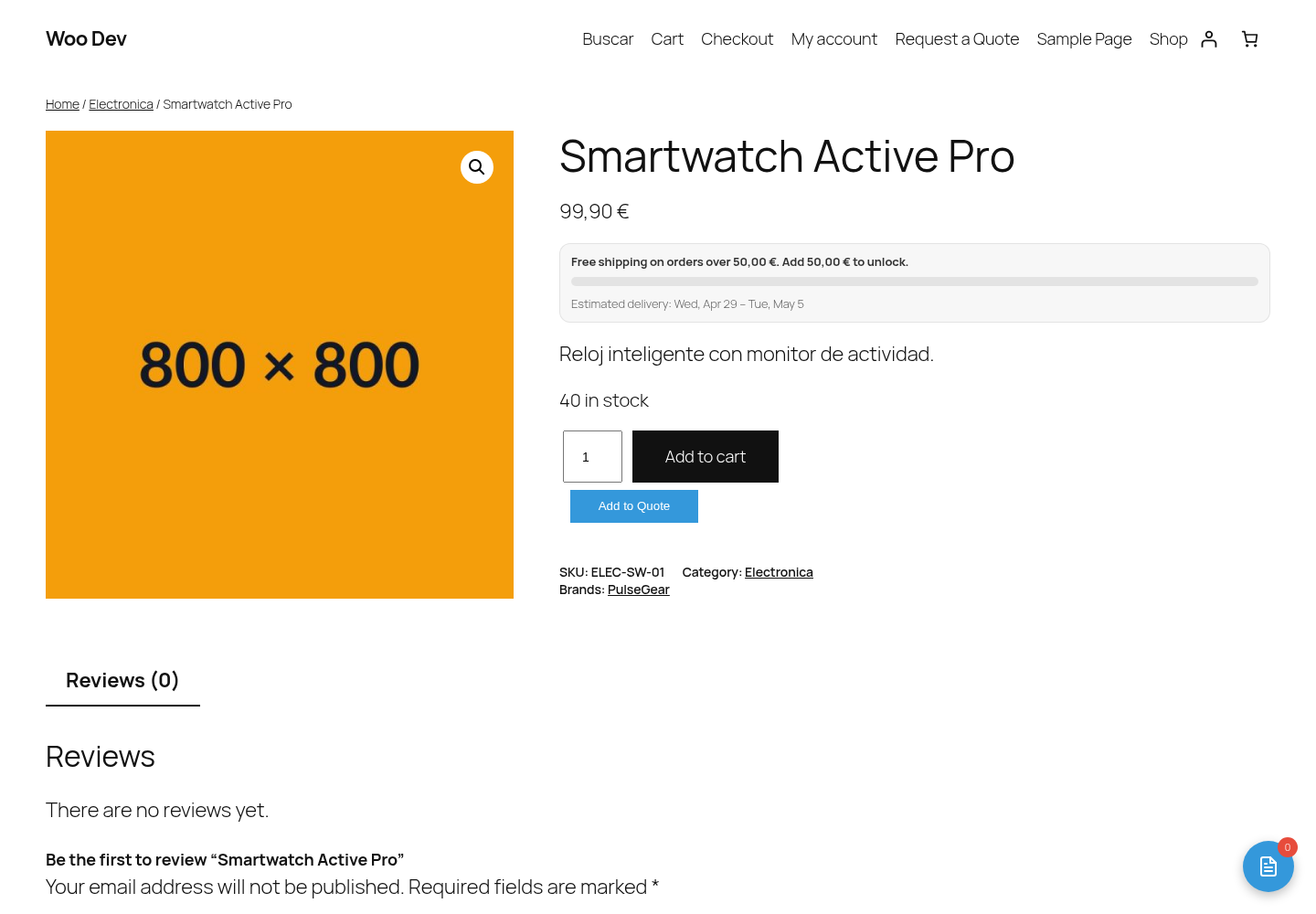 Product page with a correctly sized Add to Quote button
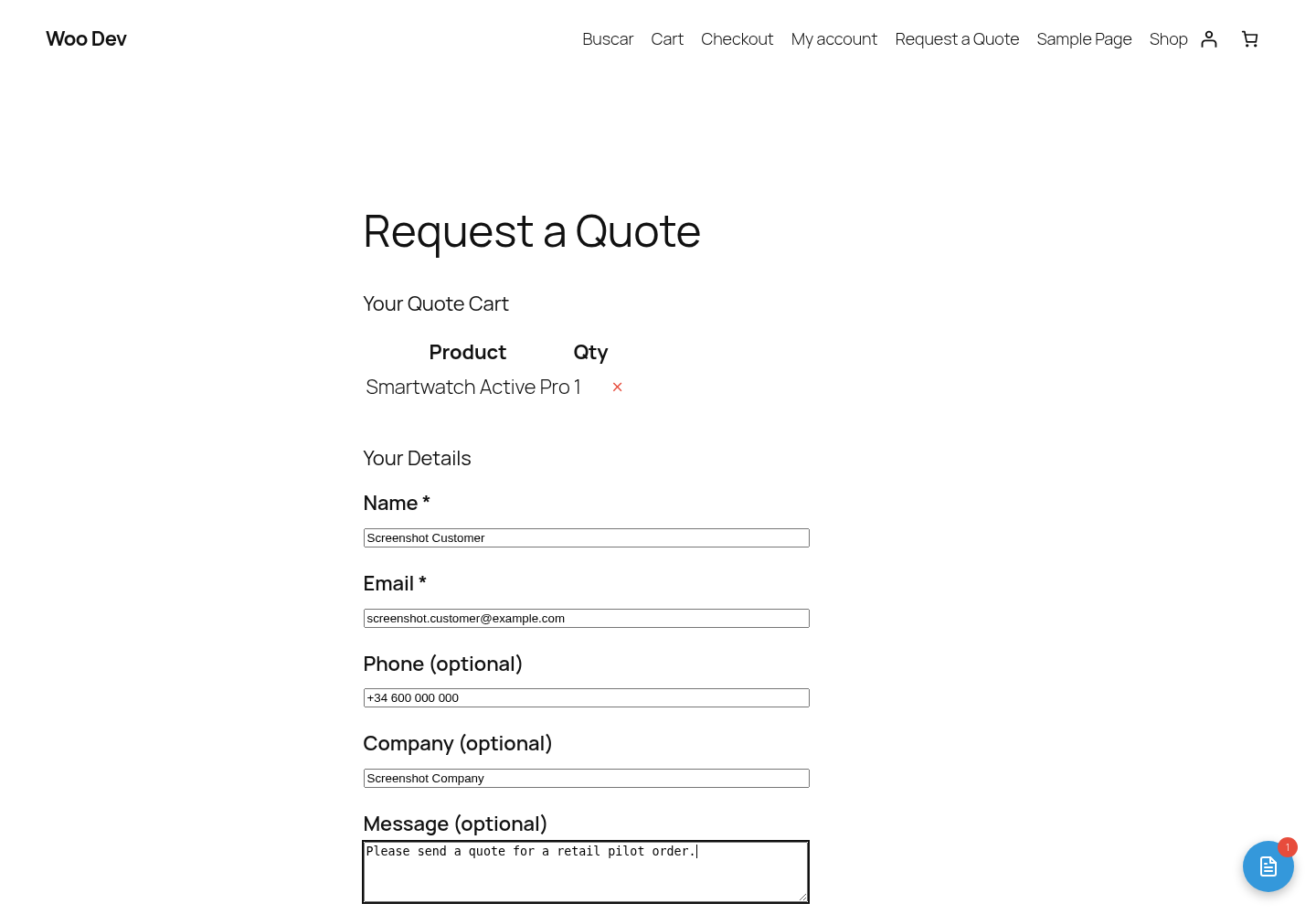 Frontend quote cart form with customer details and message fields
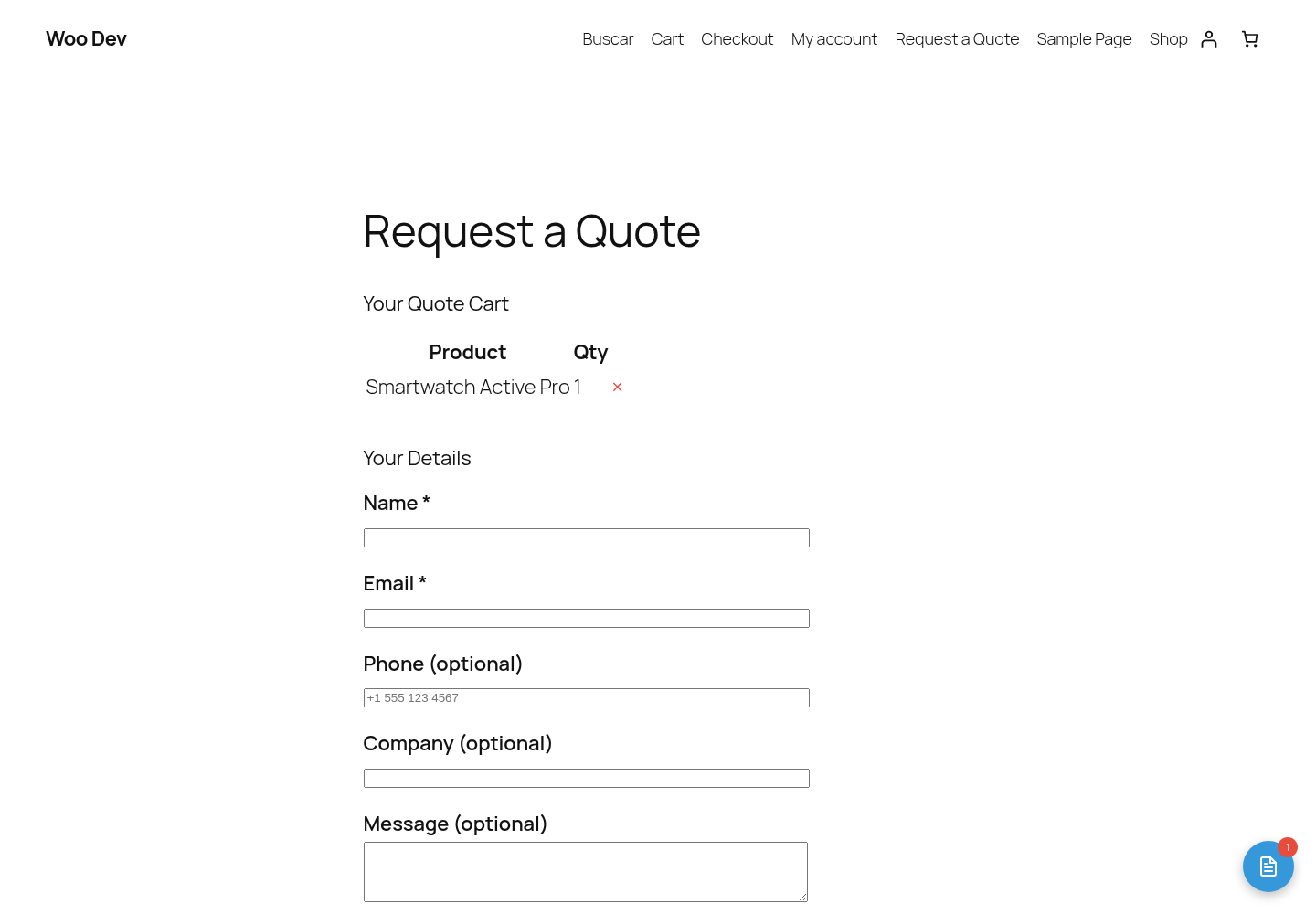 Frontend success message after quote submission
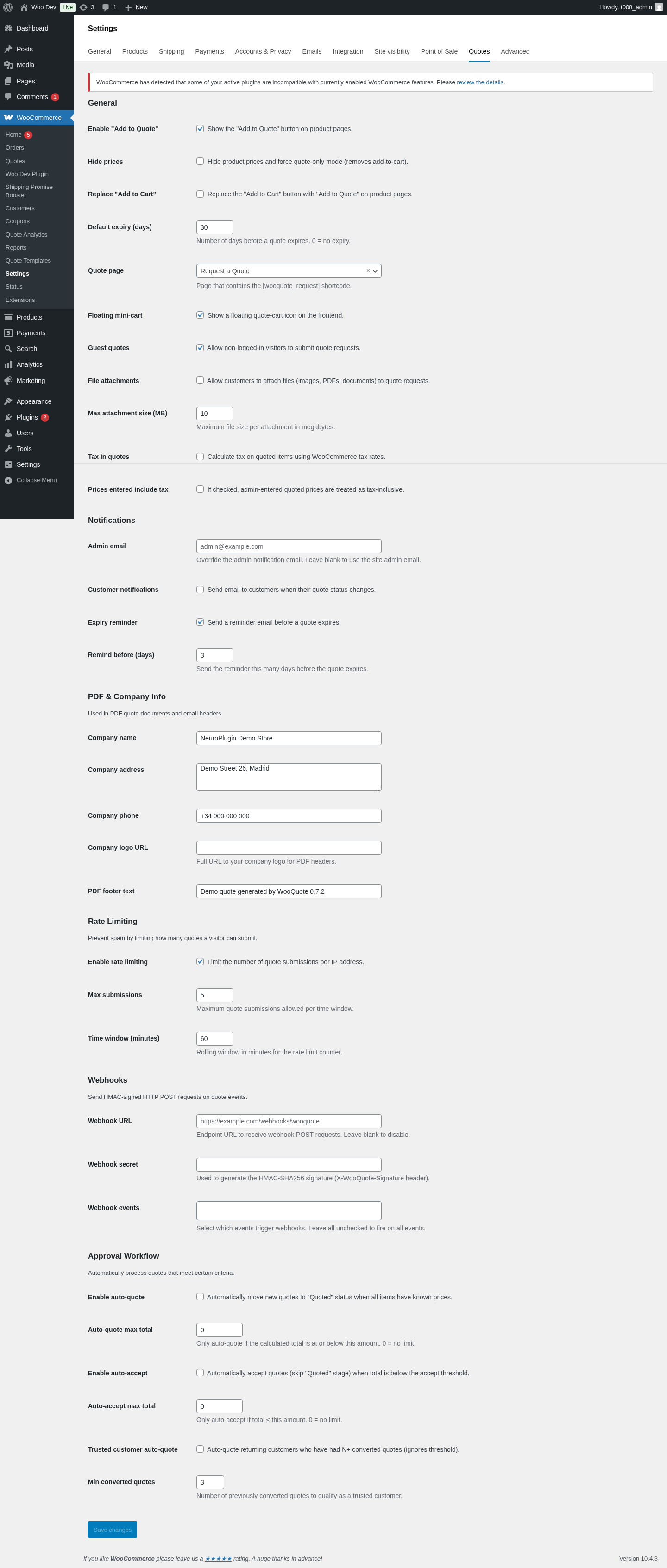 WooCommerce Quotes settings page
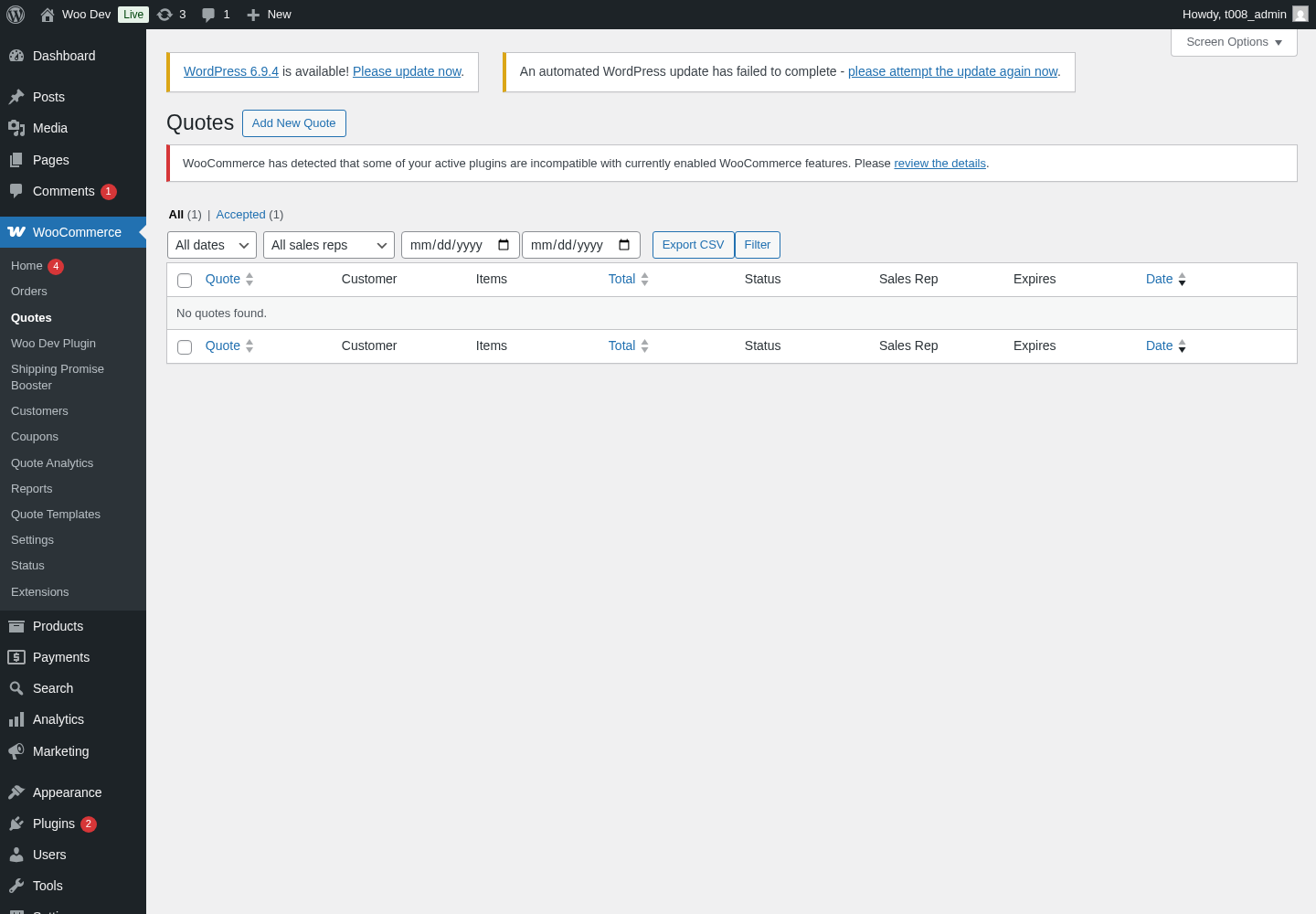 Backoffice Quotes list with quote statuses
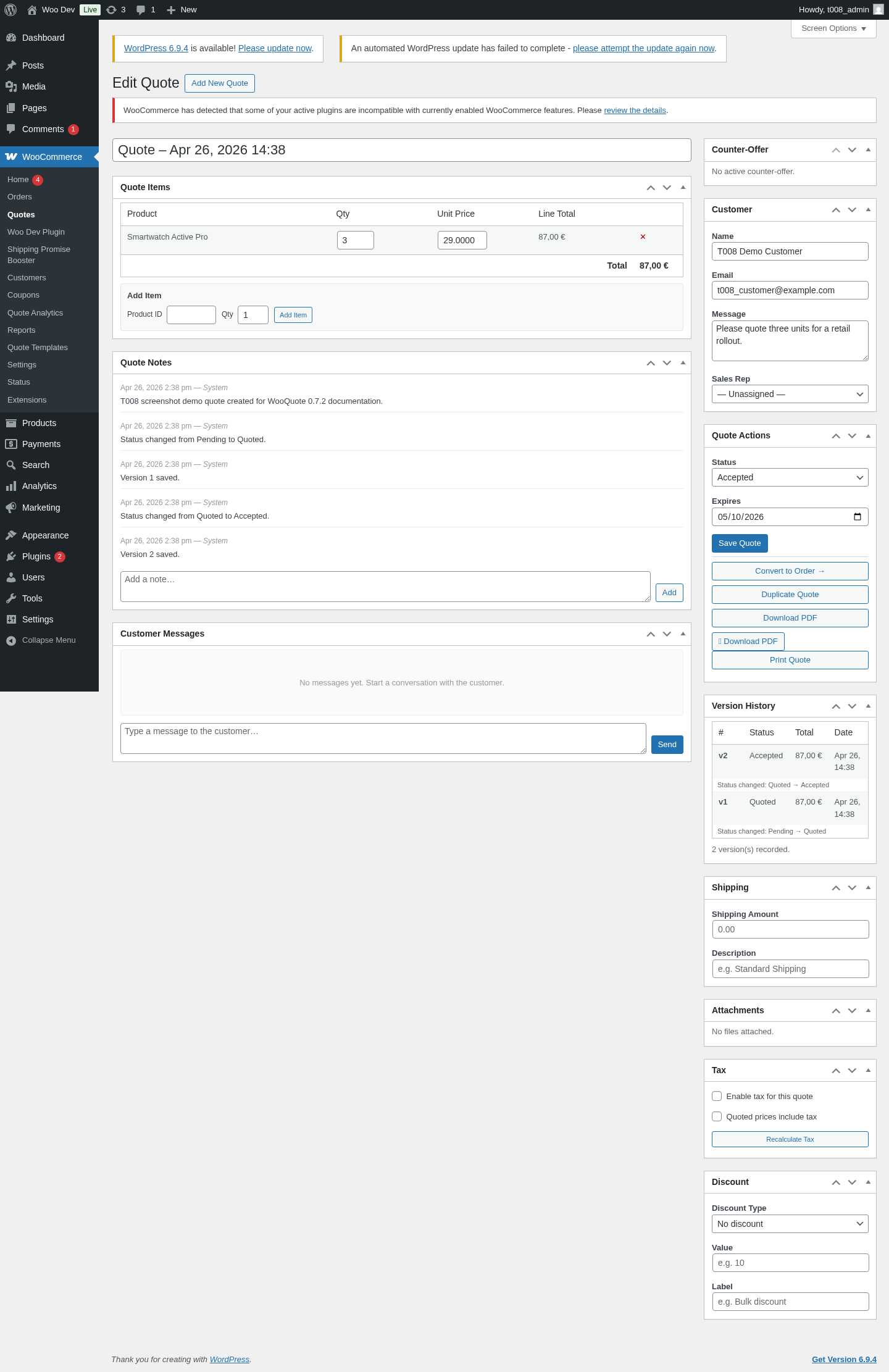 Accepted quote detail with pricing, notes, PDF, and Convert to Order action
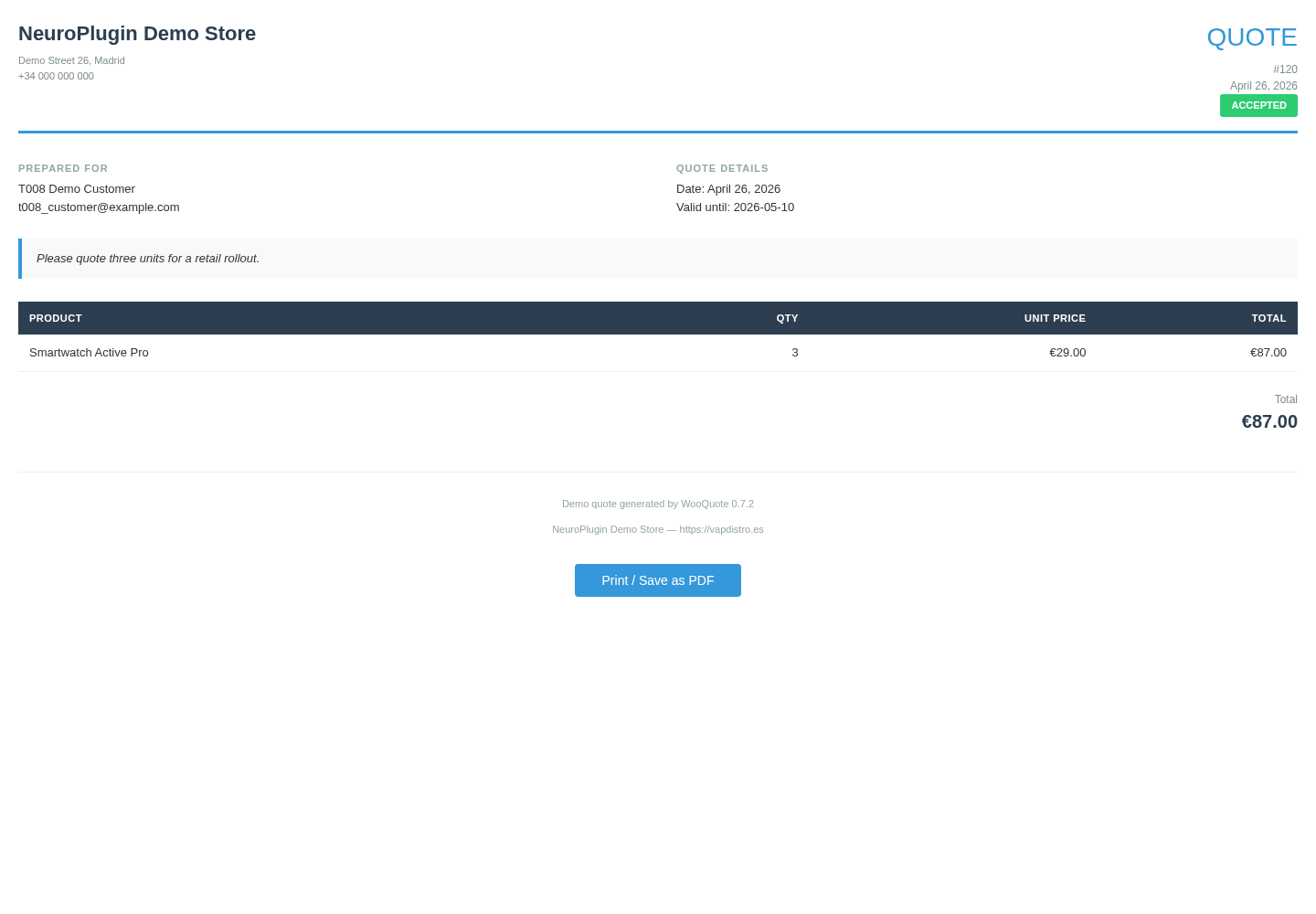 PDF/print-ready quote preview
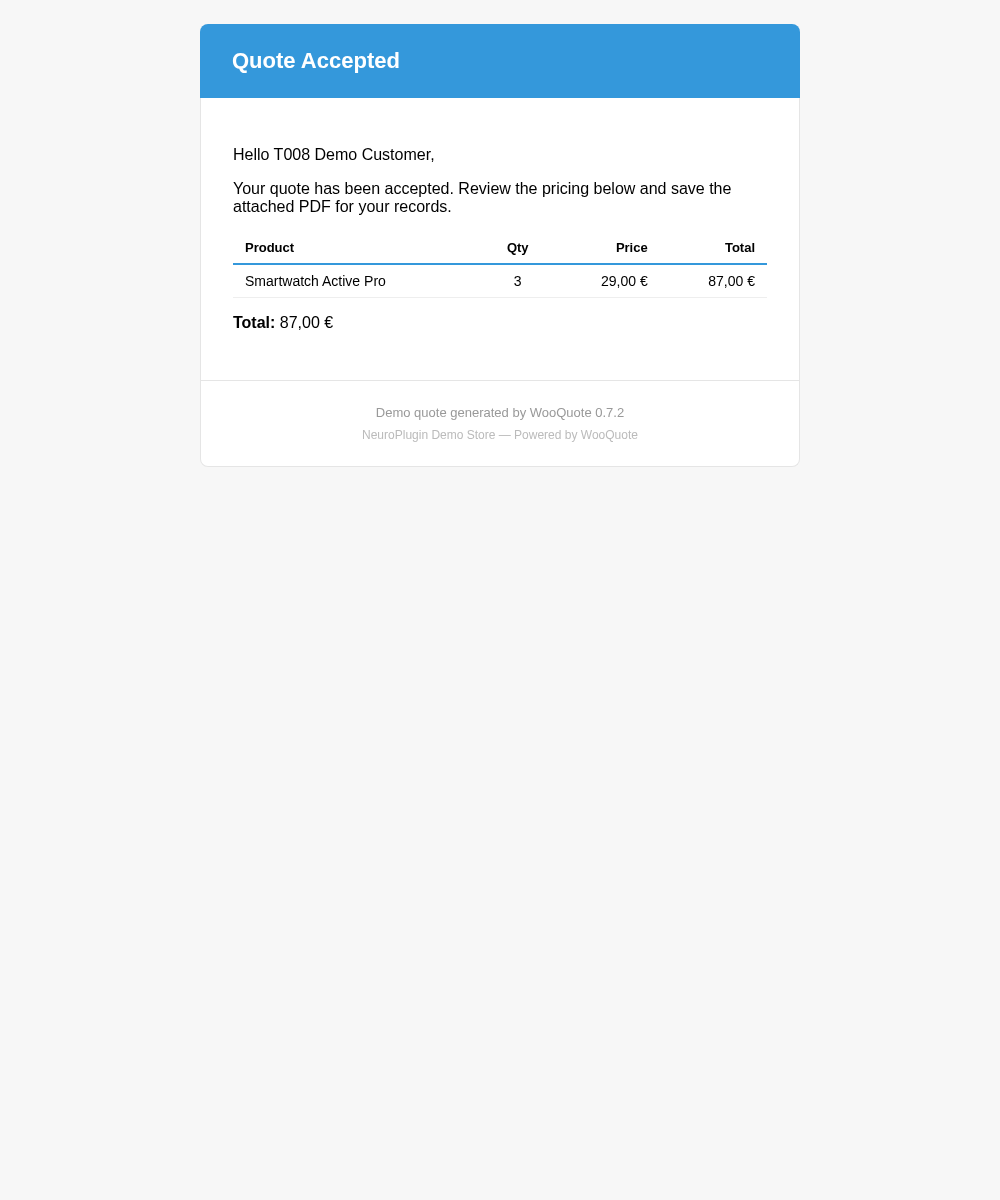 Customer email template preview
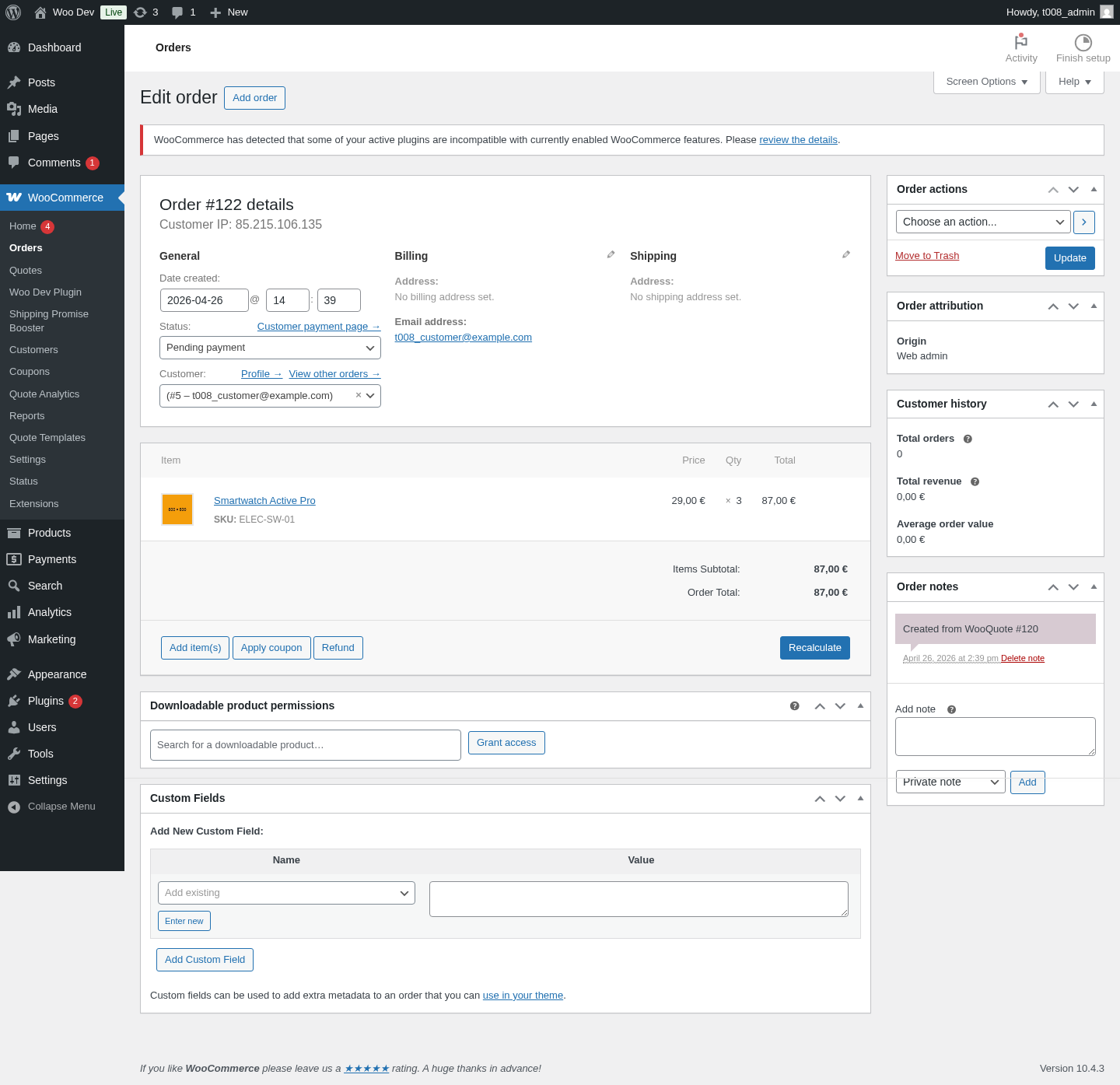 WooCommerce order created from an accepted quote
6. Verified Result
- Clean uninstall/install passed.
- Upgrade from WooQuote 0.7.0 to 0.7.2 passed.
- Missing
wq_quote_versionstable repair passed. - RFQ flow converted a quote total of
62.00into a WooCommerce order during QA. - Frontend product page, quote page, REST cart endpoint, PDF preview, and email template were validated.
- The final package SHA256 is
3c1b656a403f0f8e966e8a50cee07197b462188eab659b0ac8f22ac780d4ae14.
phpunit is not installed. Manual release QA and package lint passed.