NP CrossSell Pro 2.0.0 Install Guide
A screenshot-based installation, upgrade, and first-use guide for cross-sell, upsell, bundle discount, and recommendation features on PrestaShop 8 and 9.
Package
Use vp_fbt-2.0.0.zip for PrestaShop 8.x and 9.x stores. The module folder remains vp_fbt for upgrade compatibility.
What you get
Product page FBT, cart upsells, checkout upsells, order-confirmation recommendations, campaign rules, bundle discounts, order-history algorithm, analytics dashboard, CSV import/export.
1. Package File
- Package:
vp_fbt-2.0.0.zip - Public name: NP CrossSell Pro
- Module folder:
vp_fbt(preserved for upgrade compatibility) - Platform: PrestaShop 8.x and PrestaShop 9.x
- PHP: 7.4+
- Download: https://neuroplugin.com/downloads/np-fbt/
shasum -a 256 vp_fbt-2.0.0.zip on macOS / Linux or certutil -hashfile vp_fbt-2.0.0.zip SHA256 on Windows and compare with the value shown on the product page.
2. Install Steps (Clean Install)
Open Module Manager
Log in to your PrestaShop backoffice and go to Modules → Module Manager.
Upload the ZIP
Click Upload a module, drop in vp_fbt-2.0.0.zip, and wait for PrestaShop to confirm the install. The module registers as NP CrossSell Pro.
Configure first products
Open any product in the backoffice. The CrossSell Pro tab appears in the product edit page. Search for related products, add them, and save.
Verify the storefront
Open the product page in the storefront. The FBT section should appear below the product content with the selected related products, total price, and add-all CTA.
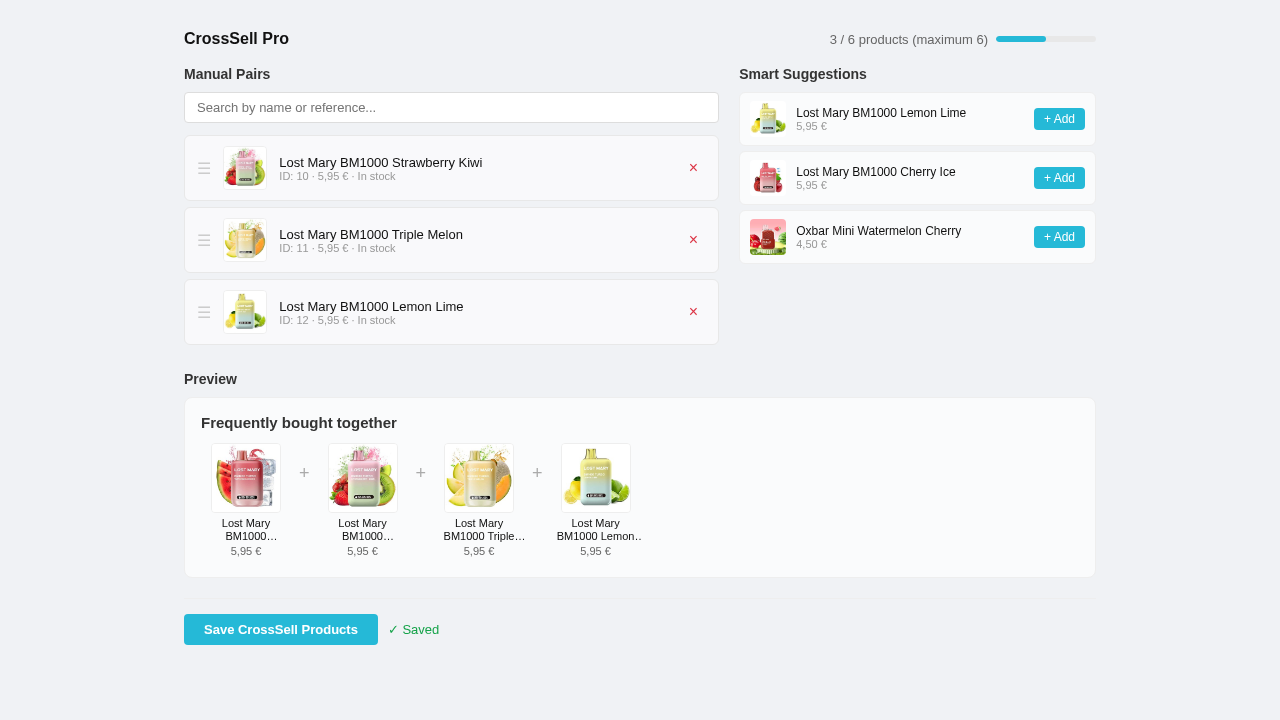 Admin product tab — search for products, add to the FBT bundle, drag to reorder, save.
3. Upgrading from FBT 1.0.0
NP CrossSell Pro 2.0.0 is a drop-in upgrade. Your existing manual product relations are preserved automatically.
Upload 2.0.0 over 1.0.0
Upload vp_fbt-2.0.0.zip through Module Manager. PrestaShop detects the existing vp_fbt folder and triggers the upgrade path.
Upgrade script runs
The upgrade creates new tables (vp_fbt_campaign, vp_fbt_rule, vp_fbt_offer, vp_fbt_offer_product, vp_fbt_pair_stat, vp_fbt_cart_discount, vp_fbt_event) using IF NOT EXISTS. The original vp_fbt relation table is untouched.
Verify preserved relations
Open a product that had FBT relations configured in 1.0.0. The CrossSell Pro tab should show the same related products. The storefront FBT section renders as before.
4. First Configuration
After install or upgrade, walk through these settings to activate the features you need.
5. Storefront Placements
NP CrossSell Pro renders recommendations in four storefront locations, each optimised for its context.
Product page (Frequently Bought Together)
The main FBT section below the product content. Shows related products with checkboxes, total price, and an add-all-to-cart button. Sources: manual curation, order-history pairs, campaign offers, catalog fallback.
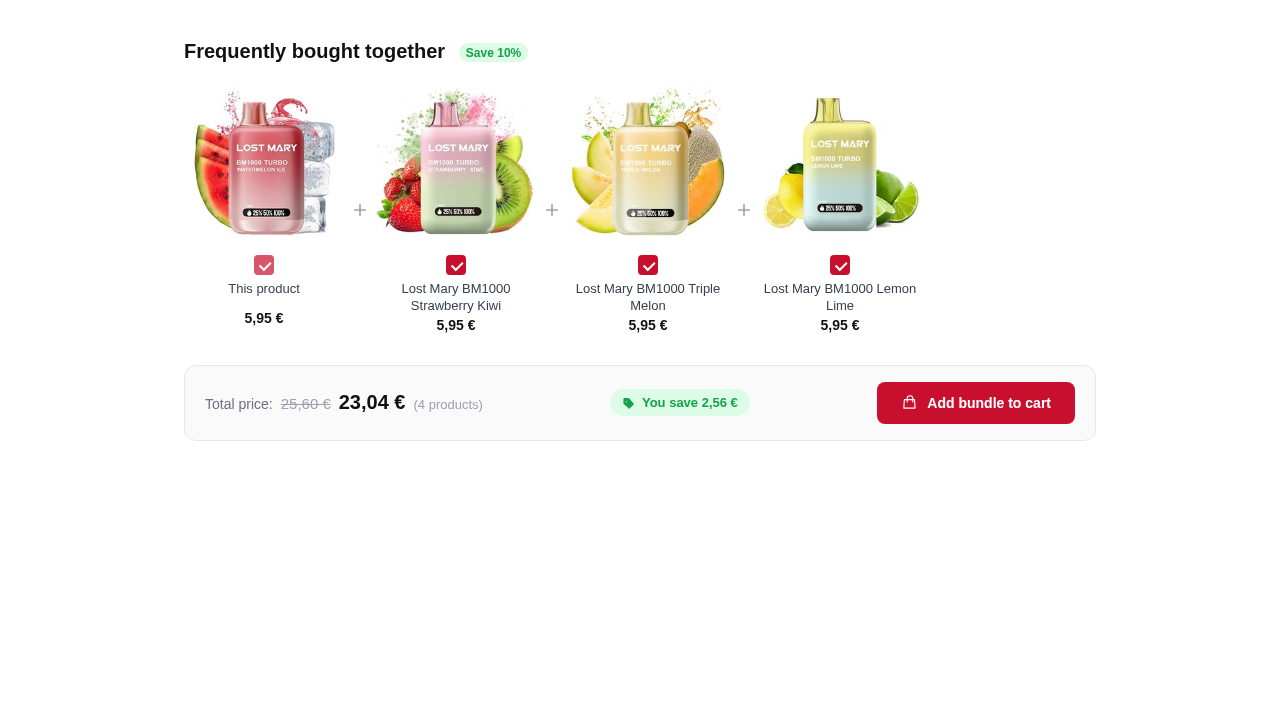 Product page FBT section on PrestaShop 9 — main product always selected, related products toggleable, total price updates live.
Cart upsells
A recommendation section in the cart footer. Shows products that complement items already in the cart, with quick-add buttons. Products already in the cart are excluded automatically.
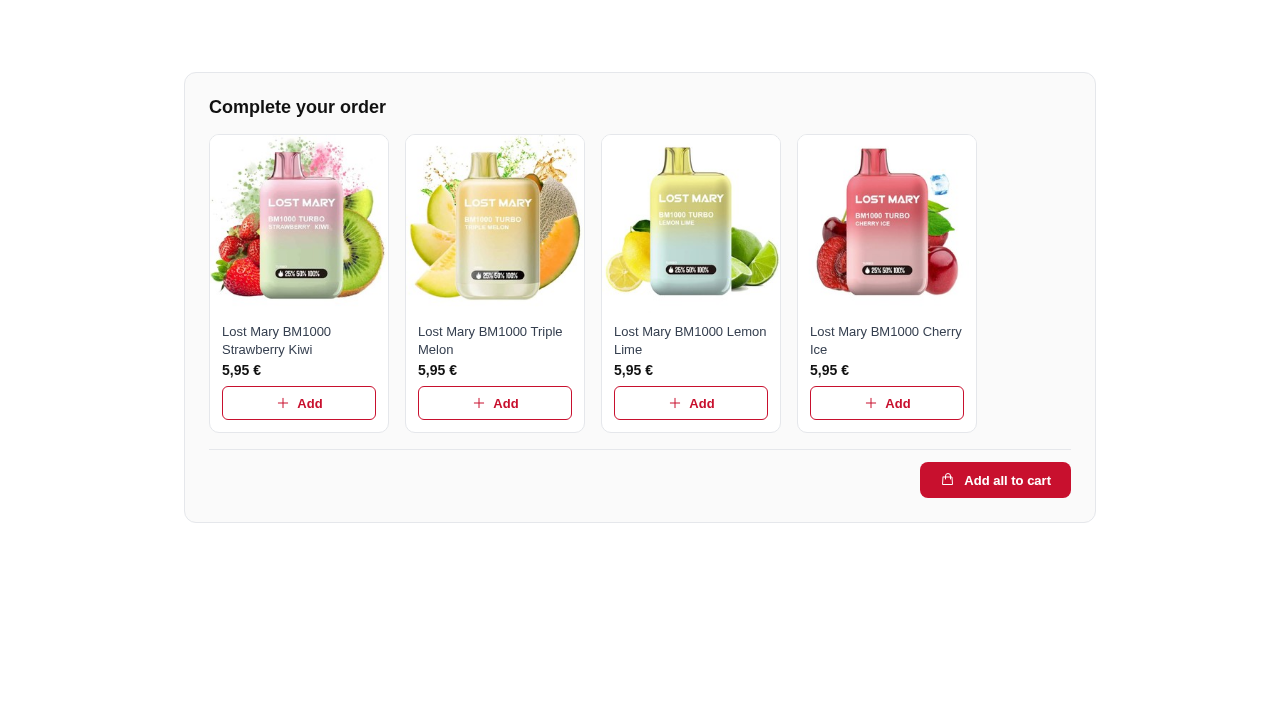 Cart upsell section — quick-add buttons, products already in cart filtered out.
Checkout upsells
A non-blocking section above the payment step. Limited to 3 products to avoid distracting from checkout completion. Rendered via the displayPaymentTop hook.
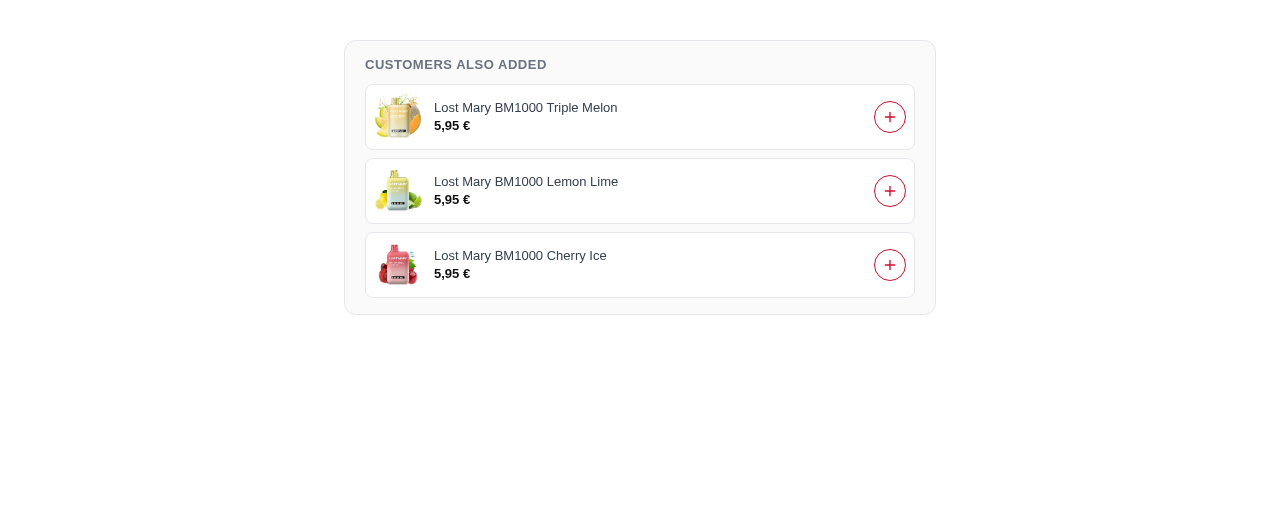 Checkout upsell — lightweight, limited to 3 products, non-blocking before payment.
Order confirmation
Read-only recommendations on the thank-you page. No add-to-cart — these are link-only product cards for the next shopping session.
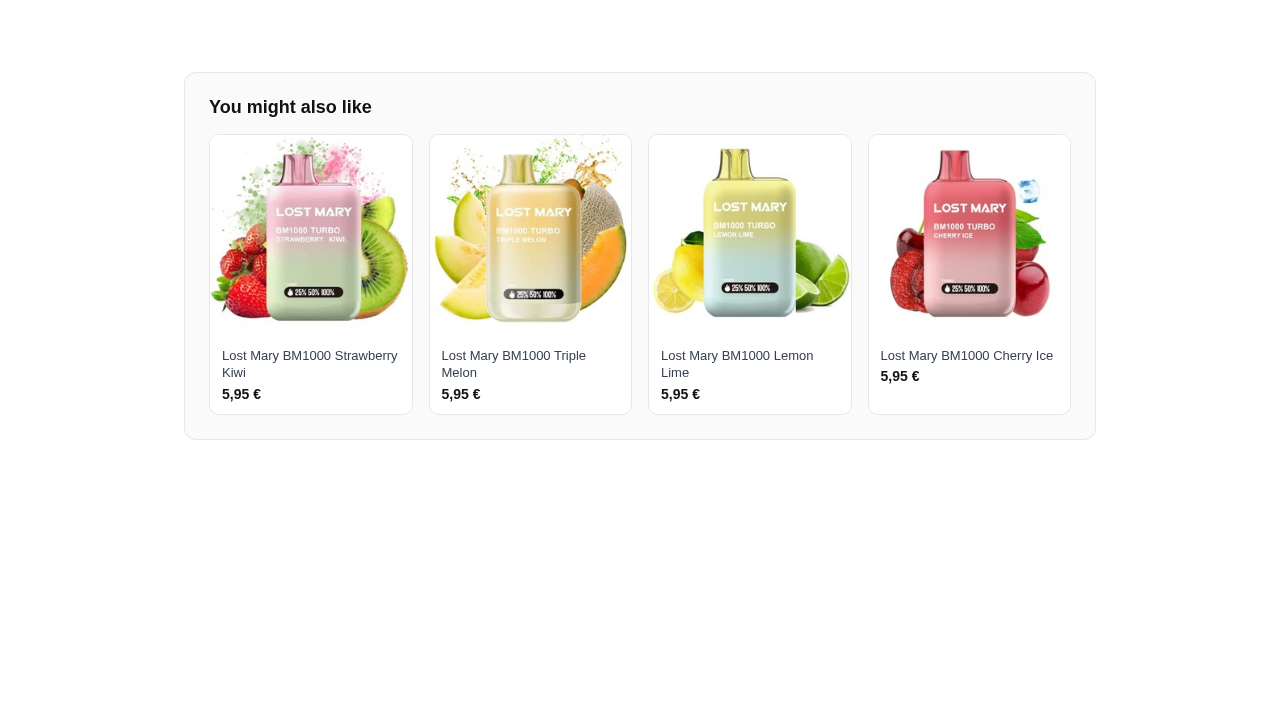 Order confirmation — read-only product cards linked to product pages.
6. Campaign Builder
Campaigns let you create rule-based recommendation sets that target specific products, categories, brands, or customer segments.
Open the campaign builder
Go to Modules → NP CrossSell Pro → Configure and open the Campaigns tab.
Create a campaign
Give it a name, choose a placement (product, cart, checkout, or order-confirmation), and set a priority.
Add rules
Rules filter when the campaign activates: by category, brand, price range, customer group, language, shop, or stock level. All rules must match for the campaign to fire.
Add offers
Each offer is a set of products with optional discount. Add products, set the discount type (none, percentage, fixed), and save.
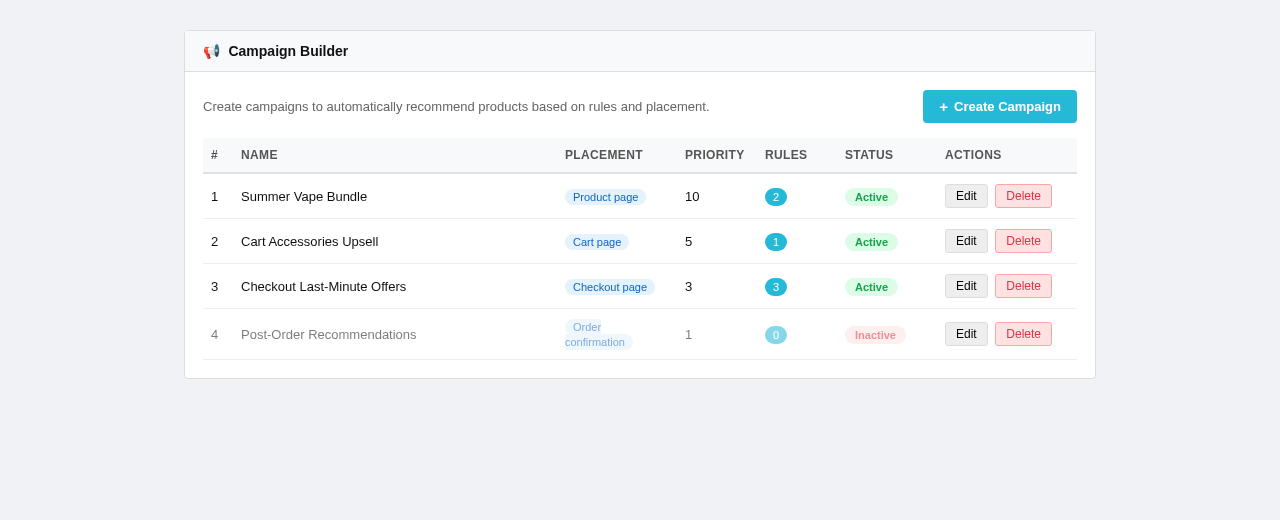 Campaign builder — create campaigns with rules, offers, and discount tiers.
7. Bundle Discounts
Bundle discounts incentivise customers to add the full recommended set instead of cherry-picking individual items.
actionCartSave hook and removed automatically if the bundle condition breaks8. Analytics
NP CrossSell Pro tracks recommendation performance without blocking page rendering or checkout. Events are recorded in the vp_fbt_event table.
9. Frontoffice Validation
Run this checklist after configuration. It mirrors the QA steps used on the demo stores.
data-vp-fbt section with related products10. Screenshots
Reference gallery of all storefront placements and back-office screens for NP CrossSell Pro 2.0.0.
Storefront — all placements
Product page — FBT section with total price, checkboxes, and add-all CTA.
Cart — upsell recommendations with quick-add, cart items excluded.
Checkout — non-blocking upsell above payment, max 3 products.
Order confirmation — read-only recommendation cards.
Storefront — PrestaShop 8
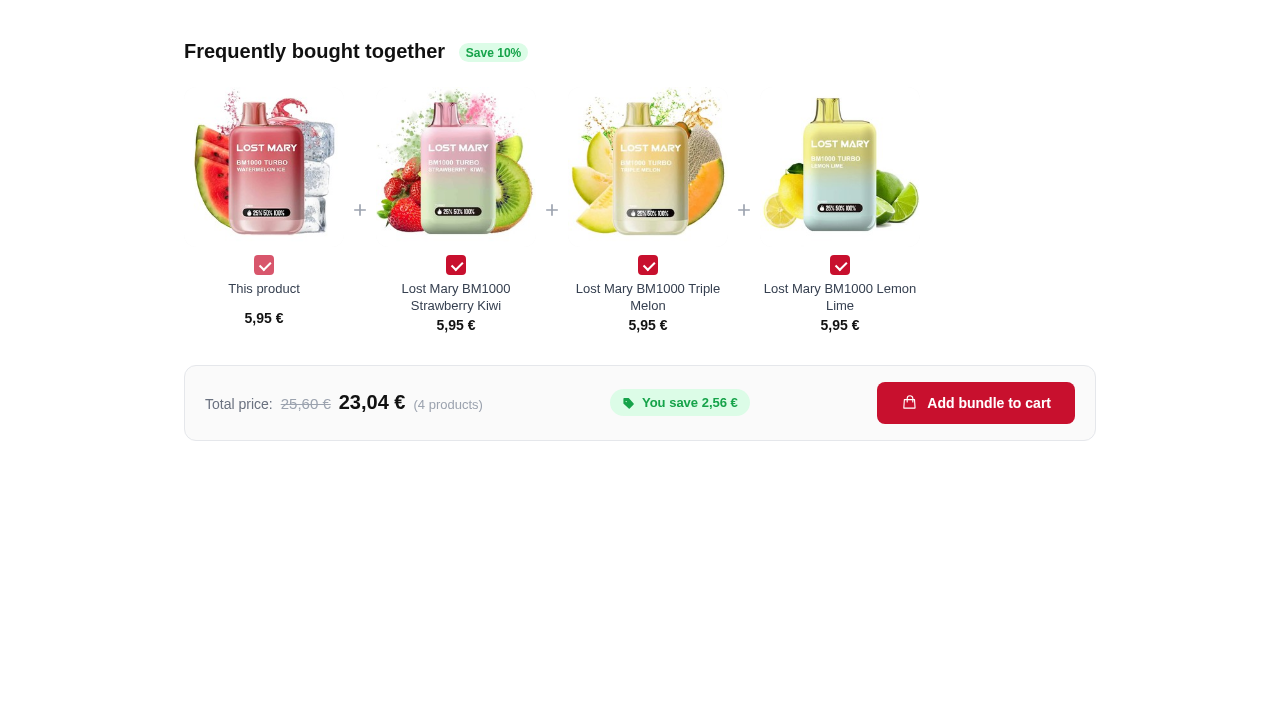 PrestaShop 8 — same FBT UX, validated on PS 8.x storefronts.
Back office
Product edit tab — search, add, drag-to-reorder FBT products.
Campaign builder — rules, offers, discounts, placement targeting.
11. Troubleshooting
FBT section does not appear on the product page
Verify the module is enabled (VP_FBT_ENABLED = Yes) and the product has at least one manual FBT relation or an active campaign that matches. Check that the displayFooterProduct hook is registered.
Cart upsells are empty
Cart upsells require either campaign offers targeting the cart placement or order-history pair data. If you only have manual FBT relations, those render on the product page only. Create a cart-placement campaign or run the order-history rebuild.
Bundle discount is not applied
Ensure the discount type is set to percentage or fixed (not “none”) on the campaign or offer. Verify all products in the bundle are in the cart. Check that the actionCartSave hook is registered and firing.
Upgrade from 1.0.0 did not create new tables
The upgrade script uses IF NOT EXISTS. If the tables are missing, try uninstalling and reinstalling the module. Your vp_fbt relation table data is preserved as long as you do not drop the database tables manually.
Out-of-stock products appear in recommendations
The safety filter checks stock at render time. If the product was recently sold out, clear the PrestaShop cache and reload. If the issue persists, verify the ProductSafetyFilter class is loading correctly.
Analytics events are not recorded
Event tracking is asynchronous via AJAX. Check the browser developer console for blocked requests. Ensure your CSP and WAF allow POST requests to the module’s AJAX endpoint.