NP Search Documentation
Start here if you want the shortest path from evaluation to installation. This page is designed to answer the questions merchants and agencies usually have before and after adding NP Search to a PrestaShop 8 or 9 store.
New here?
Use the demo first, then read the quick start below. You should know whether NP Search fits your storefront before you spend more time on configuration details.
Ready to install?
NP Search is built for PrestaShop 8 and 9, with source code included and no SaaS dependency chain. The quick start covers the shortest route from ZIP upload to first validation.
Need a fit check?
If you are unsure about theme compatibility, rollout, or pre-sales technical details, use the support page before purchasing or installing.
1. Quick Start
If you want the shortest version, this is the path:
2. Before You Install
NP Search is designed for stores that already have meaningful search intent and want a stronger on-site search experience without moving to an external SaaS stack.
- Supported storefronts: PrestaShop 8 and 9
- Frontend stack: Vanilla JS + CSS
- Backend stack: Pure PHP + MySQL / MariaDB FULLTEXT
- License model: Lifetime license, one installation, source code included
- Best practice: Test on a staging environment or non-critical store first if you have heavy theme customization
3. Installation
Download the ZIP
After purchase, download the current NP Search ZIP package from your account page: npsearch-ps8-2.6.2.zip for PrestaShop 8 or npsearch-ps9-2.6.2.zip for PrestaShop 9.
Upload in Module Manager
Go to Back Office → Modules → Module Manager, click Upload a module, and select the ZIP file.
Let NP Search bootstrap itself
On install, NP Search automatically creates its index tables, seeds synonyms, registers hooks, and replaces the native search flow where compatible.
4. First Validation
After installation, validate these points before treating the rollout as done:
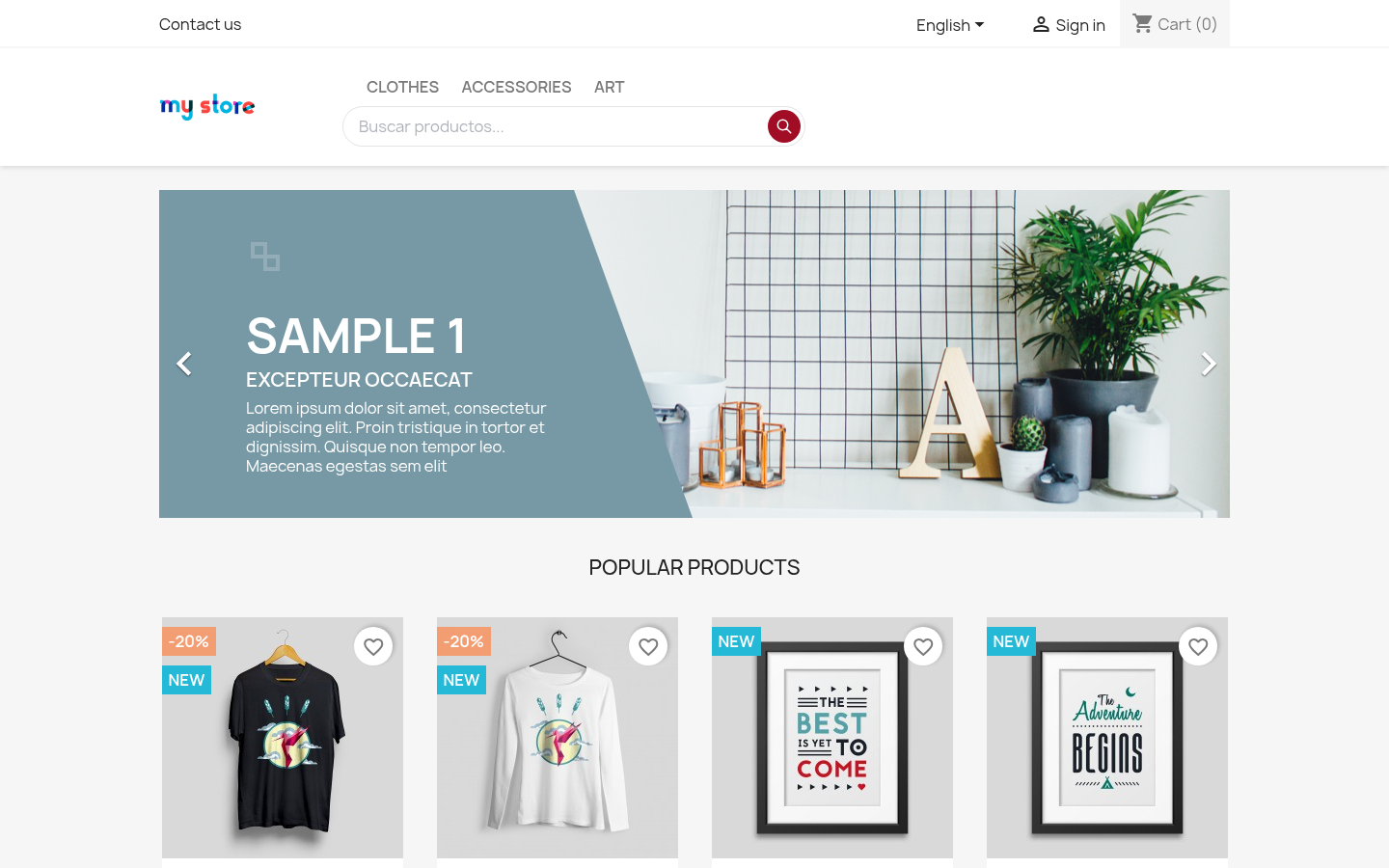 NP Search widget replaces the native search bar in the header when the theme integration is working correctly
5. Search Overlay
When a customer clicks the search input, NP Search opens a full overlay designed to shorten time-to-result.
- Debounced search input for responsive typing
- Popular categories and brands as entry shortcuts
- Recent searches stored locally for convenience
- Overlay interaction that feels like an intentional search surface, not a weak default search field
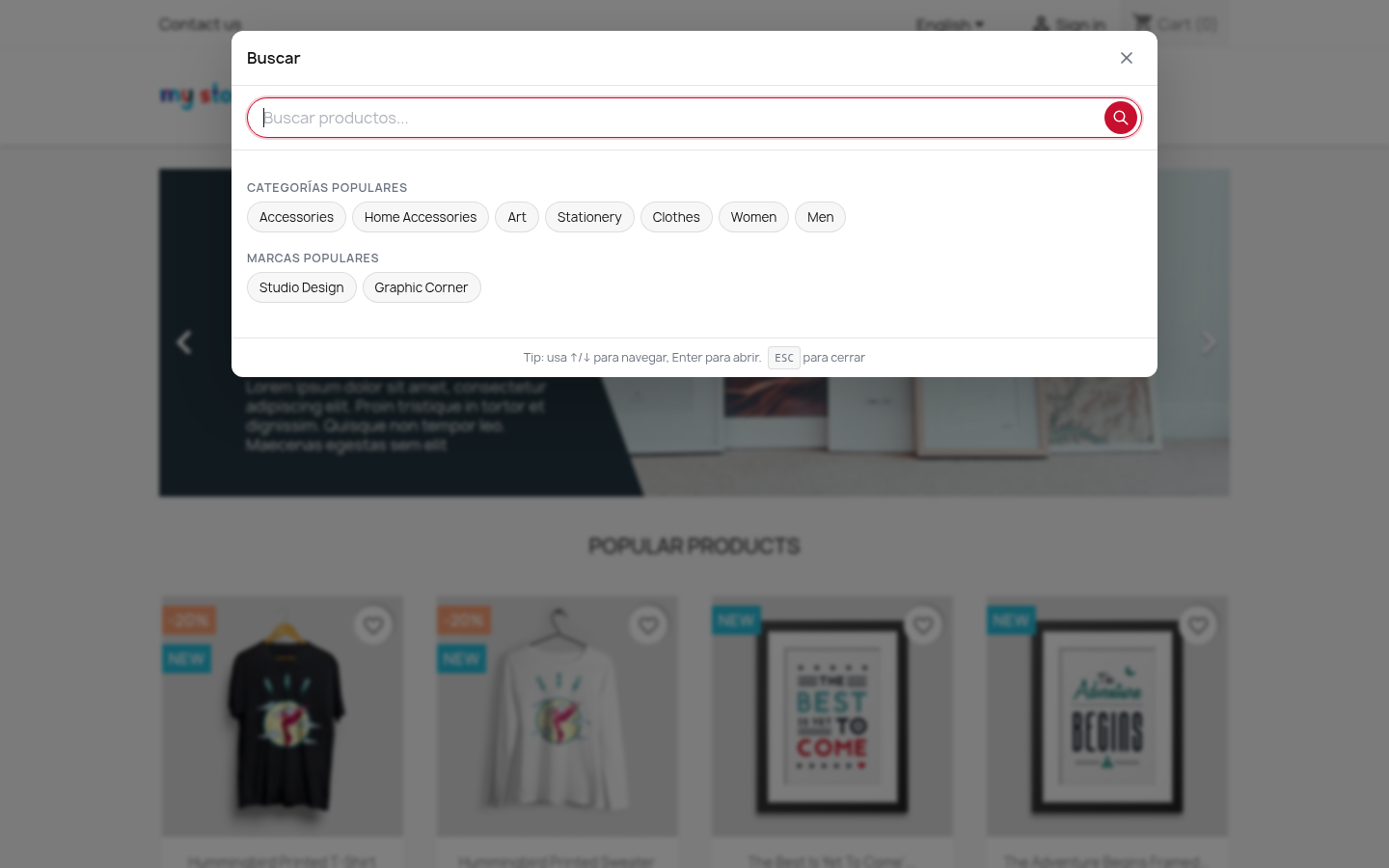 The empty state gives shoppers sensible starting points instead of a dead blank search box
6. Search Results
As the customer types, results appear in real time with product cards, relevance handling, and merchant-friendly fallback behavior.
- Product cards with image, name, price, and stock signals
- Hybrid relevance logic using FULLTEXT, exact and prefix signals, and fuzzy fallback
- Faceted filtering for categories, brands, stock, and price
- Merchandising controls for pinned and boosted products on exact queries
- Click analytics for measuring product engagement from search results
- Sorting and pagination for larger catalogs
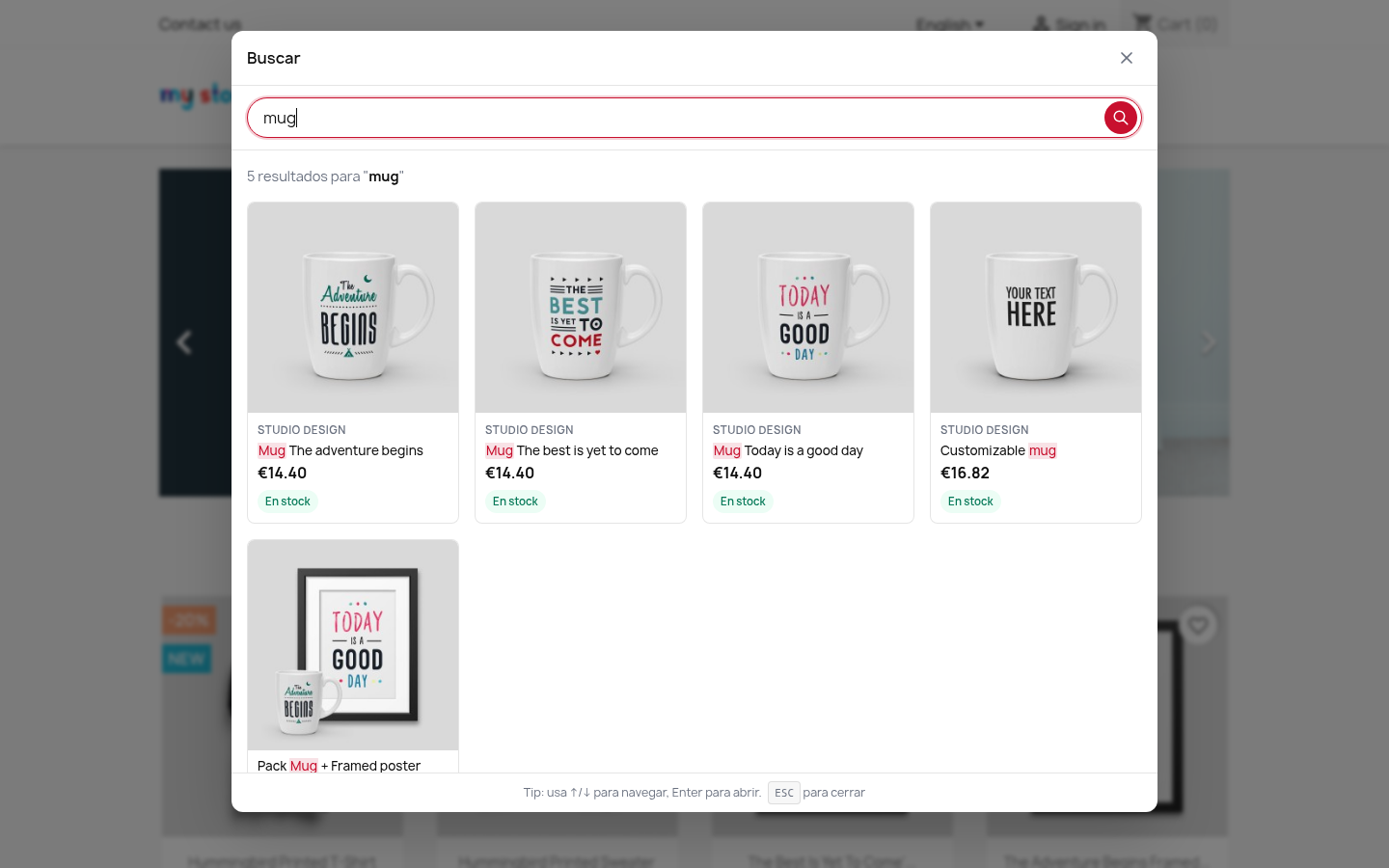 Search results with cards, filters, and real storefront relevance handling
7. Backoffice Configuration
Go to Modules → NP Search → Configure to manage the merchant-facing controls.
Settings
- Setup workspace: start with the next-best-action banner, index health, theme adapter status, and vocabulary status
- Theme adapter: NP Search detects the current theme and reports hook coverage before you go live
- Custom search selectors: use this when your theme has custom search triggers that NP Search should intercept
- Hide native search elements: useful when you want the NP Search interface to fully replace the native widget
- Cron presets: copy an hourly, six-hour, or daily rebuild command and rotate the cron token when needed
Search Index
- Index status: confirm products are indexed correctly
- Rebuild Index: useful after bulk imports or major catalog edits
The index updates automatically on product add, edit, and delete events.
8. Synonym Management
NP Search ships with 585+ synonym groups across 23 sectors, which helps stores recover intent from real-world shopper language.
What you can do
- Add new synonym groups
- Edit existing groups
- Activate or deactivate groups by sector
- Re-seed the default synonym set if needed
Example
If your customers search with terms like sneakers, trainers, zapatillas, or other local phrasing, NP Search can expand those relationships instead of forcing exact catalog wording.
9. Analytics Dashboard
The analytics view helps merchants improve search instead of guessing.
- Total searches
- Zero-result rate
- Fuzzy fallback rate
- Action Center with prioritized zero-result, conversion, and latency recommendations
- Popular searches
- Zero-result queries
- Daily search volume
- Operations panel for cron, synonym CSV import/export, and analytics export
10. Theme Compatibility
NP Search is designed to work with PrestaShop 8 and 9 storefronts, including default themes and many custom themes.
- Classic — tested
- Hummingbird — tested
- NP Starter — detected and supported by the built-in adapter
- Custom themes — typically workable with hook detection and custom selector settings
If your theme is customized
- Check whether the storefront search area is being intercepted properly
- If not, identify the theme search selector in DevTools
- Add that selector in NP Search → Configure
- Re-test on frontend and mobile
11. FAQ
Does NP Search work with PrestaShop 9?
Yes. NP Search is positioned for PrestaShop 8 and 9, with dedicated source and demo environments for both versions.
Does it require jQuery, React, or another framework?
No. NP Search is built with vanilla JavaScript and CSS on the frontend, plus PHP on the backend.
Does it require Redis, Elasticsearch, or an external hosted service?
No. NP Search uses MySQL or MariaDB FULLTEXT and its own module logic rather than an external search subscription.
What should I do before purchasing?
Use the demo, review the product page, read this quick start, and contact support if you still need a fit check for theme or rollout questions.
Can I add my own synonyms?
Yes. The backoffice includes synonym CRUD controls so you can add, edit, activate, or deactivate groups.
What happens if I uninstall NP Search?
The module removes its own search data and the store falls back to the native PrestaShop search flow.
12. Support
If you need help, use the support path that matches the question:
- Technical support: issues after install, selector mapping, unexpected storefront behavior
- Sales and pre-sales: fit checks, rollout questions, compatibility uncertainty before purchase
- General contact: anything that does not fit the two categories above
Best next step: visit Support or email support@neuroplugin.com with your PrestaShop version, module version, theme name, and the specific issue or question.